Rebuilding My Corrupted Apple Music Library: Lessons from Using AI Tools
What do you do when you open Apple Music and discover that thousands of songs have vanished? After my repair attempts left my library corrupted, I rebuilt everything from scratch using AI tools to help brainstorm solutions and speed up the process. Here’s what I learned about recovering a damaged Apple Music library — and the unconventional method I landed on for organizing everything.
Chapter 1: A Brief History
My history with Apple Music began with iTunes on a Windows computer. I was in college when cassettes and vinyl gave way to CDs. By the time Apple released iTunes for Windows in 2003, I had amassed a sizable CD library. Sometime later, I ripped the collection to MP3 so I could manage my music library in iTunes and sync it to iPods.
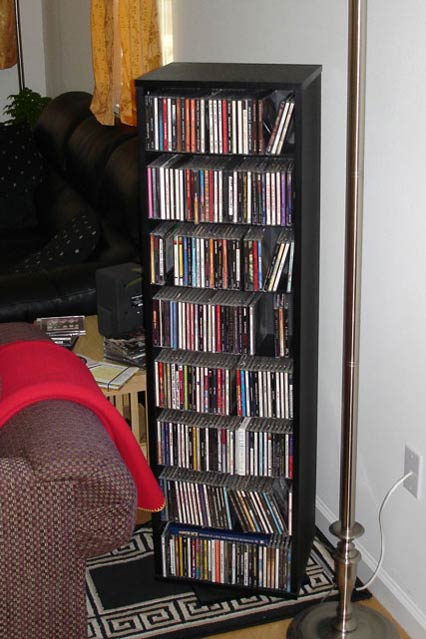
For 10-15 years, I managed and expanded my music collection this way (ripping CDs to MP3). My main collection was rock music (new wave, alternative, rock, pop), but I also amassed a substantial amount of world, smooth jazz, classical, and holiday music. I’ve rarely, if ever, purchased digital music (e.g., from the iTunes Store).
In 2015, Apple introduced its music streaming service, and three years later, I left CD-ripping behind and embraced the subscription model. If I wanted a new album, I would find it in Apple Music and add it to my library. As an added benefit, Apple Music subscriptions include iTunes Match (which matches your music to Apple’s catalog or uploads any songs that aren’t available to the cloud). Consequently, I rarely played music from my hard drive anymore.
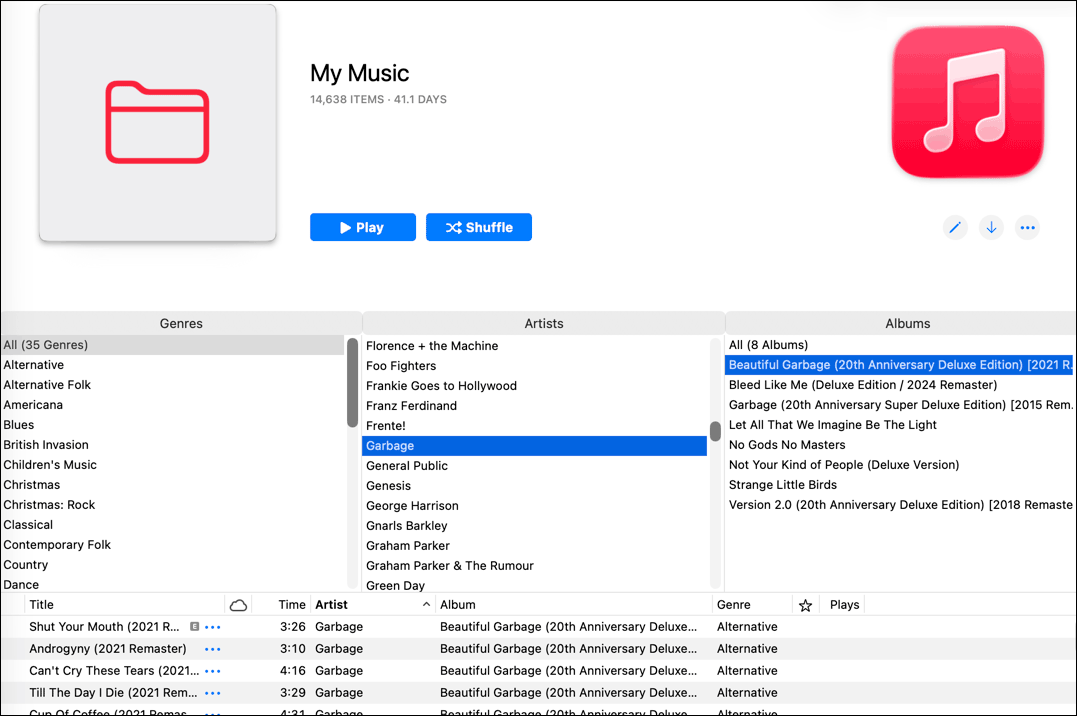
I was meticulous about how I set MP3 ID3 meta tags to organize my collection, in part to make browsing my library easier in the iTunes Column Browser. For example, I didn’t like the seemingly arbitrary genres Apple Music assigned to tracks. For the same artist, some albums might be classified as alternative, some as pop, and some as rock. I preferred the Tower Records convention of organizing all such music in one section labeled rock (or rock/pop), so I normalized all these genres to “Rock.”
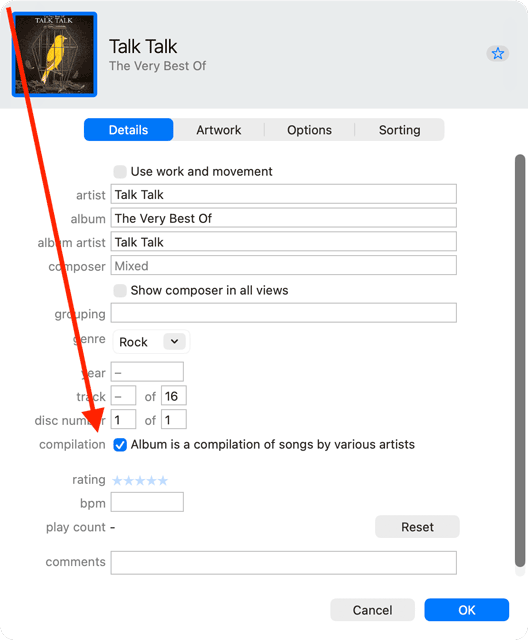
In the Artists pane of the Column Browser, I didn’t like how Apple Music placed greatest hits albums in a Compilation category instead of under the artist with their other albums. For this reason, I would unselect the compilation checkbox in an album’s properties.
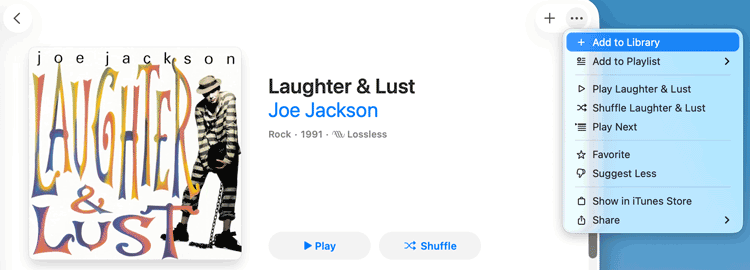
When I switched from Windows to macOS (in 2024), most of my collection dated back to the MP3 files on my music hard drive. However, I had also added a substantial amount of additional music directly from Apple Music (i.e., via the “Add to Library” option). By that time, Apple had deprecated the iTunes app and released the Apple Music app for Windows. So, I’d be moving from Apple Music on Windows to Apple Music on macOS. Easy peasy, right?
Chapter 2: MacBook Transition Tremors
In late 2024, I purchased a MacBook Pro to replace my Dell laptop. (See: There and Back Again: Returning to Mac After Over 20 Years On Windows.)
Around this time, I also started relying more heavily on AI tools as replacements for web searches — primarily ChatGPT, but also Perplexity and Gemini.
I had moved my music library and music hard drive several times between Windows computers, so I didn’t anticipate any complications in moving them to a Mac. Before getting started, I used ChatGPT and Perplexity to research the correct steps. Unfortunately, after numerous attempts, I couldn’t get Apple Music on my MacBook Pro to recognize my external Music SSD as the home of my music collection.
With more time, I might have prevailed, but I decided to give up on the effort and go streaming only. I had two rationales:
- I’d recently enabled Apple Lossless as my preferred streaming format, and that quality level far surpasses my old MP3 files (most of which I’d ripped at 256 kbps).
- The iTunes Match feature meant that all of my collection was available to stream — no hard drive needed.
A Side Quest
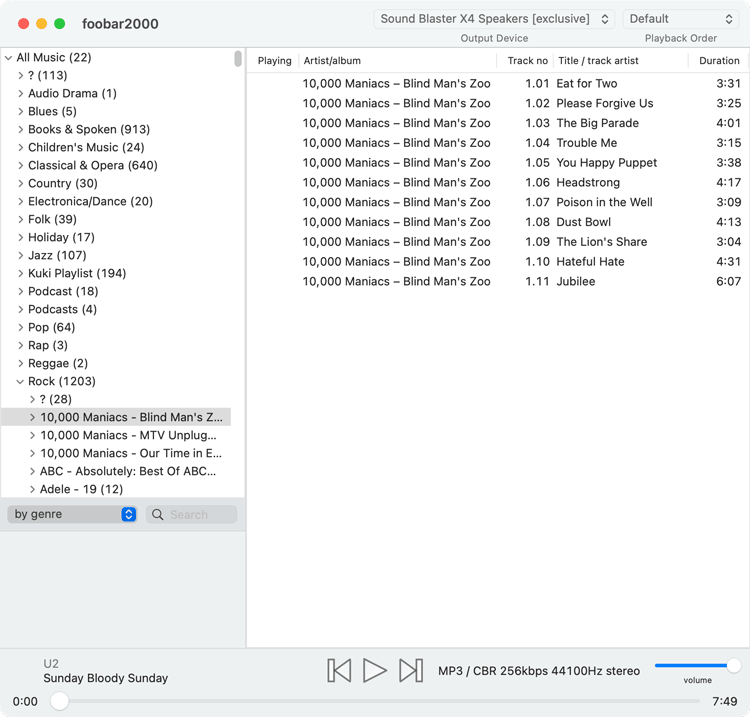
As a side note, I still wanted a (preferably free) macOS music player that could play the music on my hard drive. Just in case. I tried a few options and settled on foobar2000, which indexes your music files and makes navigating your music collection easy.
Chapter 3: Signs of Trouble
For the first year on my Mac, I didn’t use the Apple Music app much. I tended to listen on my iPhone, mostly to podcasts and to music only when I’d caught up on podcasts.
After about a year, I noticed on my Mac that many of the songs in my collection were greyed out in Apple Music, which made them unplayable. Uh oh.
When I investigated my greyed-out songs, I discovered that their cloud status was “Waiting.”
This is a good time to explain Apple Music Cloud Status.
A Cloud Status Primer
Cloud Status is a metadata field in Apple Music that indicates how each song in your library exists in Apple’s cloud music system and how it syncs across devices.
Cloud Status tells you whether a track:
- Comes from the Apple Music streaming catalog.
- Was purchased from the iTunes Store.
- Was matched to Apple’s catalog from your own file.
- Was uploaded from your personal library.
- Is still processing, unavailable, or has a syncing problem.
Below is a summary of the possible states.
Status | Meaning |
|---|---|
Apple Music | Track from Apple Music catalog (subscription required) |
Matched | Matched to Apple’s catalog and stored in iCloud |
Uploaded | Your original file uploaded to iCloud |
Purchased | iTunes Store purchase in your cloud library |
Waiting / Not Uploaded | Pending upload/match |
Error | Sync/upload failed |
Ineligible | Cannot sync to iCloud |
Removed | Removed from cloud, still local |
Duplicate | Duplicate of another cloud item |
No Longer Available | Withdrawn from Apple Music catalog |
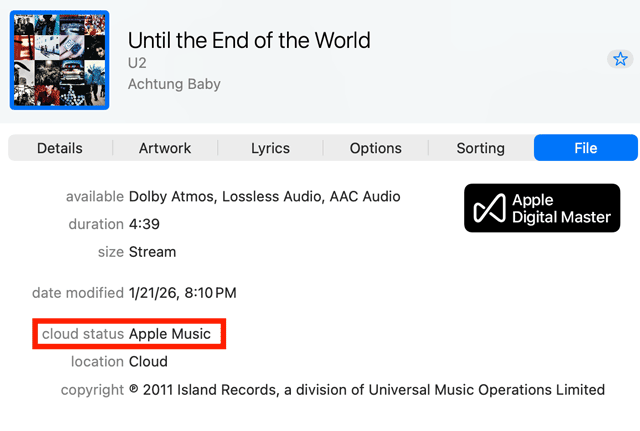
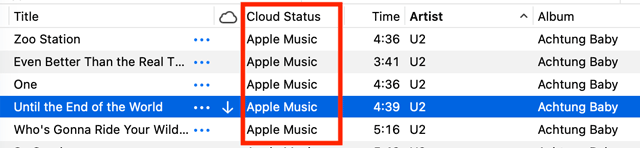
You can find a track’s cloud status in two places:
1) In the Get Info properties screen for a track.
2) You can expose it as a column in the Column Browser.
Chapter 4: This Theory, That I Have, That Is to Say, Which Is Mine…
I used ChatGPT to analyze this problem, and the theory was that Apple Music doesn’t like it when your local music files go missing. Below is the chatbot’s conclusion (paraphrased):
For Matched and Uploaded tracks, Apple Music keeps a cloud copy on Apple’s servers. In theory, once a song is successfully matched or uploaded, Apple Music should no longer need access to the original local file to stream or download it on other devices. However, Apple Music still treats the local file as authoritative metadata — especially on the computer where Sync Library is enabled.
If Apple Music believes a track should exist locally, but can no longer find the original file (e.g., because the external drive is no longer attached, the library was migrated from PC to Mac without the media files, or the file paths changed during a migration), then Apple Music can get stuck in a limbo state. Instead of cleanly marking the track as Matched or Uploaded, it may revert to Cloud Status: Waiting. This typically means that Apple Music wants to confirm or re-process the track for iCloud, but cannot access the original file to do so and therefore cannot complete the operation.
Ughhhhh!
Chapter 5: Cleaning Up My Music Library
With my library in a partially broken state, and assuming the theory above, I deliberated my options.
- I could try again to integrate my music drive so that Apple would recognize the local files. However, I no longer wanted to tether my music collection to offline music files, so I didn’t pursue this option.
- Artist by artist, for any albums stuck in the Waiting state, I could delete and re-add them (from the Apple Music catalog).
- I could do nothing. Not really an option since I enjoy having a curated music collection; I also feared that if I did nothing, more of my music could revert to the disabled Waiting state.
I decided on option 2, but only for my rock collection. The effort would be too great if I also tried to clean up the other genres in my library (which I rarely listen to anymore).
So, every day, I would review a few artists. For albums with one or more tracks showing a cloud status of “Waiting,” I deleted the entire album, found it in the Apple Music catalog, and re-added it to my library. After several days, I had reached the letter J.
Chapter 6: A Christmas Surprise
On Christmas Eve (December 24, 2025), I opened Apple Music and found that my entire rock collection was gone, except for Joe Jackson.
Disaster!
To this day, I’m still unsure exactly what happened, but I have 2 theories.
- Apple Music glitched (although I’ve never seen anything like this before).
- User error. While deleting some albums the previous day, maybe I’d made the wrong selection in the Column Browser (i.e., everything but the Joe Jackson albums). I can’t imagine I made an error this egregious, but I can’t rule it out.
Unfortunately, I had exited and reopened Apple Music, hoping to clear up the problem. Had I not done so, selecting Undo from the Edit menu might have reverted everything. I can’t remember if the Music app had been running continuously since the previous day, but likely it had.
Believe it or not, this is where the real story begins.
Everything up to now was just a preamble!
Fasten your seatbelts. The ride gets bumpy from here.
Chapter 7: Time Machine to the Rescue?
In ChatGPT, I began researching recovery options, including Time Machine.
When I set up my MacBook Pro the previous year, I had enabled Time Machine. With the default settings, Time Machine saves the last 24 hours of hourly backups, the last 30 days of daily backups, and then stores weekly backups up to your drive’s storage limits.
Hopefully, all I’d need to do is restore an earlier version of my music library file to revert everything back to normal.
I opened the file path below to view my music library file.
/Users/randy/Music/Music/Music Library.musiclibrary
Then, I clicked on the Time Machine icon in the menu bar and selected “Browse Time Machine Backups.” Looking back through the hourly Time Machine backups, I could see when the problem happened by checking the size of the “Music Library.musiclibrary” file. At one particular backup, the file suddenly became much smaller. The prior backup with a substantially larger file size was obviously the last known good state of the file.
I restored that backup and then reopened Apple Music.
For several seconds, my Apple Music library appeared intact — as it was before the mass deletion.
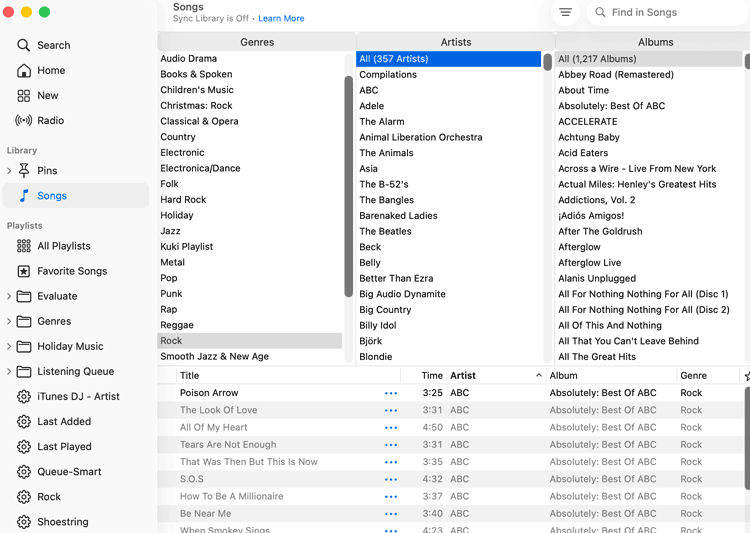
But then, after a few moments, it switched back to the problem state, with all rock music gone again, except for Joe Jackson.
Doh!
As a former software engineer, I had a good suspicion of why. If you’ve enabled Sync Library (so that your music is available on all devices), Apple Music treats the library snapshot on its servers as the “source of truth.” In other words, if your iCloud library is more recent than your Mac’s copy, Apple Music downloads from iCloud and overwrites the local file.
In an ideal world, Apple Music would present this conflict to users with a dialog asking whether to keep the server version or the local version. However, no such option appeared, which effectively means that with Sync Library enabled, Time Machine is useless as a backup option for Apple Music.
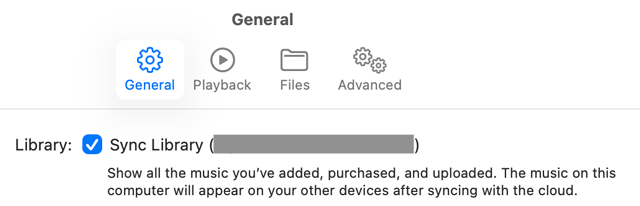
By the end of a lengthy ChatGPT thread, the chatbot wasn’t encouraging about my chances of recovery.
Time for a second opinion.
Chapter 8: Getting Too Clever For My Own Good With Gemini
I decided to start fresh with Gemini.
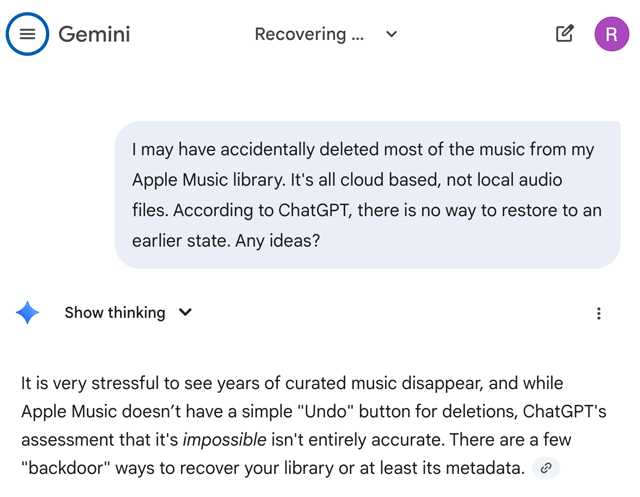
Gemini outlined four possible strategies.
1) The “Sync Library” Refresh
Sometimes the library isn’t actually deleted; the link between your device and the cloud has just been severed or “glitched.”
I had already tried variations on this theme, so I disregarded this suggestion.
2) Restore from a “Previous Library” File
Even if you don’t have a manual backup, the Music app (and old iTunes) often creates snapshots of your library database file.
I had already tried this method with Time Machine, but I was open to exploring this option further.
3) Contact Apple Support “Senior Advisors”
Standard support might tell you it’s gone, but Senior Advisors have the ability to escalate cases to engineering. In some instances, Apple can perform a “server-side rollback” of your iCloud Music Library if the deletion happened very recently.
I should have done this right away. However, my web searches had indicated that this idea would be a bust. (I did end up trying this later.)
4. Request Your Personal Data
If all else fails, you can at least get a list of every song you ever had so you don’t have to remember them from scratch.
This option would be a last resort if nothing else worked.
I told Gemini that I had a previous backup of my music library from Time Machine and that I wanted to pursue option 2. It warned me of something I’d already concluded:
If you just swap the file and open the app with Sync enabled, Apple Music will see that the “Cloud” (the empty version) is newer than your “Local” file (the restored version) and will instantly wipe your restored data to match the cloud.
It suggested several steps to get around this problem.
The first thing I did was disconnect my Mac from the Internet and restore the last known good music library file again via Time Machine. Since I was offline, Apple Music couldn’t download the iCloud version and overwrite my restored file. This put my Apple Music library back to how it was before I added the Joe Jackson albums, to the point where I had already cleaned up all artists before him (alphabetically).
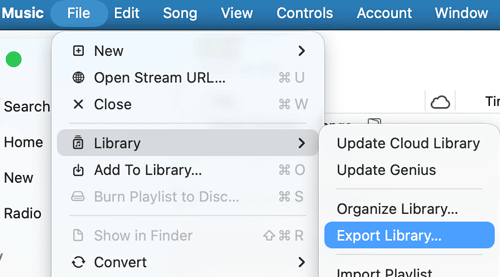
Next, I exported my Apple Music library to XML via File menu > Library > Export Library. The resulting “Library.xml” file captured and preserved the restored library state offline from Apple Music.
Step 3, according to Gemini, was the “Force Sync.”
Now you need to tell Apple that your local version is the one that should be saved to the cloud.
Basically, Gemini expected that when my Mac reconnected to the Internet, I’d be able to enable Sync Library and would see a prompt asking me to “Merge” or “Replace” my library. Gemini advised choosing “Merge” and explained:
This tells Apple: “Take the songs currently on this Mac and combine them with what is in the cloud.” Since the cloud is empty, the result of the merge is your restored library.
This all sounded great in theory, but Gemini’s knowledge was either incorrect or outdated. I never saw merge or replace options for reconciling the discrepancy between the local and cloud library states.
Next, Gemini suggested a “Manual Re-Injection” recovery method.
Essentially, we’re going to trick the app into thinking your old music is “new” music you’re adding for the first time.
When this ran into blocks, Gemini suggested a new option:
The “Playlist Injection” Method (The Most Reliable Fix).
Apple Music treats a “database swap” as an old version to be overwritten, but it treats a “Playlist Import” as a new user action that must be synced to all devices.
Like most AI chatbots, Gemini is ever helpful (sometimes to a fault) and doesn’t give up easily. In fact, it kept telling me that its ideas were better than contacting Apple Support.
Following its instructions, I performed these steps:
- Disconnected from the Internet.
- Replaced my music library file with the Time Machine backup.
- Opened Apple Music and confirmed my songs and playlists were present once again.
- Selected all songs in my library and added them to a new playlist called “RECOVERY MASTER.”
- Exported the “RECOVERY MASTER” playlist to XML.
- Reconnected to the Internet.
- Wait for Apple Music to sync my cloud library again, thereby wiping out my rock music.
- Went to File > Library > Import Playlist and imported the recovery playlist.
This method bypasses the “cloud vs. local” conflict. By importing a playlist, you are essentially telling Apple, “I just found these 5,000 songs and I want them in my library right now.” The cloud will accept this as the current state and push it to your iPhone and other devices.
In actuality, all the tracks remained stuck in the “Waiting” state and appeared as greyed out. At some point, I also got dupes of every song in my library.
Subsequently, at Gemini’s suggestion, I tried several variations of XML import methods. Among the strategies it suggested:
- The “Force Match” (One Album Test)
- The “Genius” Kickstart (The Secret Fix)
- The “Reset & Re-authorise” Fix
- The “Match-Fix” Plan (The Bulk Nudge)
Along the way, I also created a brand new, empty music library file and synced it to the cloud. Unfortunately, that didn’t lead to a successful XML import. Nothing would remove the “Waiting” disabled state from restored songs.
At this point, I felt as if I were going in circles. Gemini seemed to be repeating strategies we’d tried before. Finally, it offered a nuclear option:
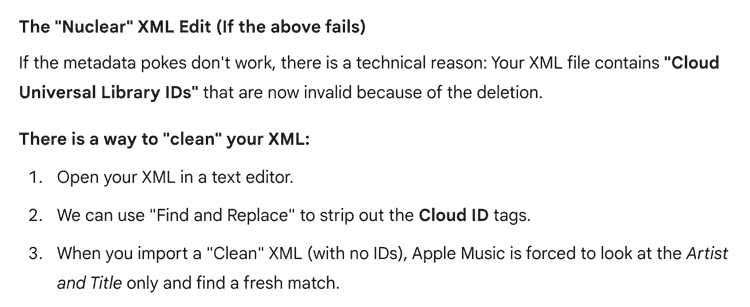
This idea seemed promising and led me down a new rabbit hole.
My XML backup file was too large to clean up manually in a text editor, so I asked about using a Python script instead. After more discussion, we agreed that the script should remove all track IDs and also all file path references. The goal was for Apple Music to see a list of songs, without awareness that some had once lived on disk, and then to match them cleanly to items in its catalog.
After much trial and error, the seventh iteration of Gemini’s Python script removed all IDs and file paths from my Library.xml file.
Unfortunately, this approach was a full stop failure; it didn’t force the desired behavior in Apple Music.
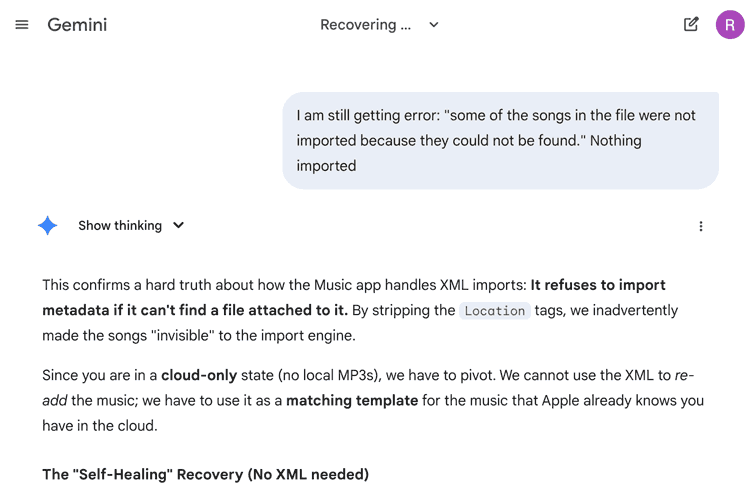
Gemini started suggesting things we had already tried, and I threw up my arms.
It was time for a different approach.
By the way, as a result of everything Gemini had me try, my entire music library was now stuck in “Waiting” state, not just the rock genre.
Chapter 9: Throwing A Hail Mary – Calling Apple Support
By this point, I couldn’t think of anything else try, except for the long shot that Apple Customer Service would be able to help.
I called customer service, and front-line support quickly escalated my case to a senior advisor. I shared my screen, and she patiently listened as I demonstrated the problem and described the steps I’d already tried to fix it. She collected all the info needed to submit a ticket to the Engineering team. At her prompting, I uploaded three files to my support ticket:
- The unmodified XML from my library export.
- The modified XML from the Gemini Python script (which I’d imported into Apple Music).
- A screenshot from Apple Music showing all songs in “Waiting” state.
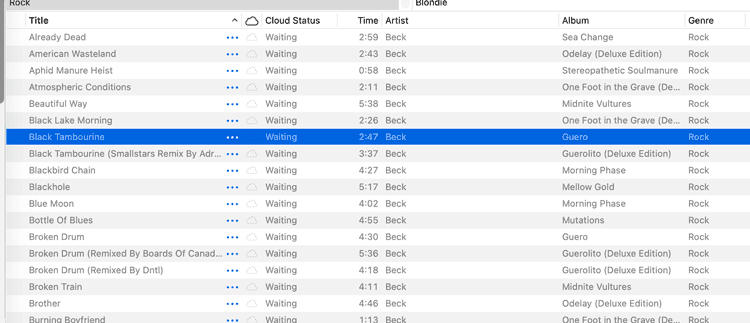
Several days later, we had a follow-up call, and she confirmed that Engineers don’t have a way to roll back libraries on Apple servers to an earlier state.
Chapter 10: Declaring Bankruptcy
It was time for me to face the music (pun intended).
The only option left was for me to declare bankruptcy on my decades-in-the-making curated music library. What would that mean?
I considered the following options:
- Do nothing. I could use Apple Music strictly as a music browser for artists and albums I could remember off the top of my head.
- Start over in Apple Music and add all the music from my old music drive.
- Start over in Apple Music and rebuild my library from scratch from Apple’s music catalog.
- Move to Spotify and start over there.
I rejected #1 because music is too big a part of my identity to give up my music collection. The sense of loss would be intolerable.
I rejected #2 because it would restore only my music drive albums and not the scores of albums I had added directly from Apple Music (without downloading them). I’d still have to do a partial rebuild, and I’d again be beholden to music files as the source of truth.
I rejected #4 because Spotify doesn’t really fit the way I organize my music. I’m old school and still very much album-oriented in my listening.
That left #3. I decided to rebuild my library, but only with artists I had originally categorized as rock.
Chapter 11: Brainstorming Music Organization Models with Perplexity
My next step was a massive, multi-day brainstorming session with Perplexity on how to rebuild my collection in Apple Music. I won’t recount the chat blow-by-blow, but I’ll summarize the key ideas we explored.
I had several preferences in mind when thinking about how to organize and manage my music. I wanted to:
- Minimize the need to manipulate metadata (genre, compilation flag, etc.).
- Have easy backup and restore options (independent of Time Machine).
- Avoid reliance on local music files.
- Have a usable experience on both Mac and iPhone.
- Have portability to other music services like Spotify (nice to have).
The big decision was whether to add my music to the Library in Apple Music (i.e., the way Apple intends you to organize your collection). After all the problems I’d had, I was gunshy about this approach and wanted to explore other options.
First, I investigated whether I could mark artists and albums as favorites and browse my collection via Smart Playlists. For example, the rule might read: Album Favorite / Suggest Less is Favorite. However, I discovered two blockers:
- Marking albums or songs as favorites adds them to your library.
- Smart playlists don’t sync to mobile devices.
I suspect this plan would have run into additional complications.
Second, I considered a radical idea: adding my albums to Playlists instead of to the Library. My notion was to have a limited set of playlists containing my whole rock collection, organized by letter ranges (e.g., Artists A-C, Artists D-F, etc.). Inside each playlist would be albums (songs, really, but I’d be adding them in units of albums).
Perplexity was super excited about this idea, and we got deep into the weeds.
I should mention at this point that I’m pretty sure Perplexity gave me a lot of inaccurate, or at least misleading, information as I considered this approach. I kept asking it to compare the positives and negatives of adopting Playlist organization vs. Library organization. It consistently advocated for the former.
Perplexity insisted that:
- Backups and restores would be easier because the collection would be more granular in playlists. If I messed up something, I’d most likely have to restore only one playlist. Restores would not be all-or-nothing.
- I wouldn’t have to monkey with metadata as much.
- Migration to Spotify via third-party tools would be easier (should I ever decide to do that).
In the end, I’m not sure I made the right choice, but I decided on the Playlist option.
Initially, Perplexity (incorrectly) indicated that Column Browser didn’t work with playlists. I was OK with that since viewing playlists “as Artists” provides a similar UI.
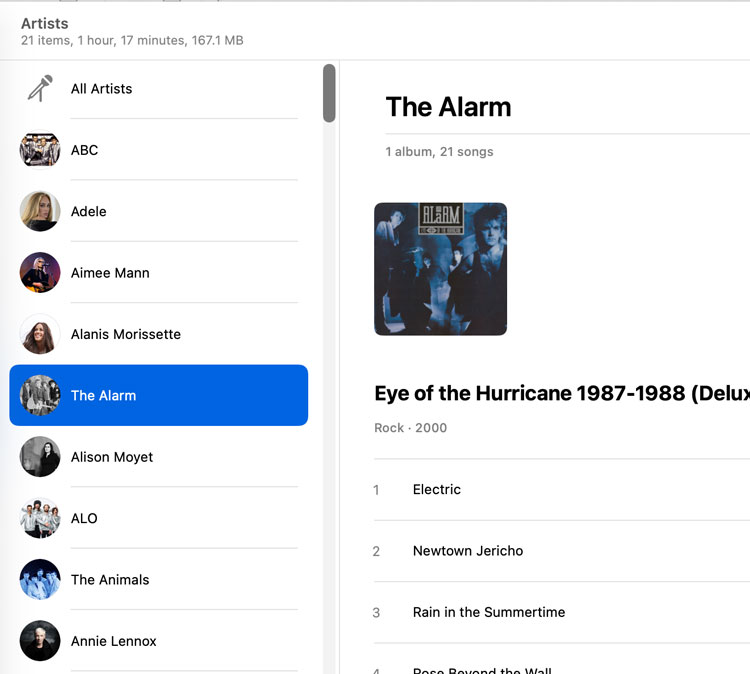
In this view, genre and compilations don’t factor into browsing your music collection, so I concluded I could skip adjusting those metadata fields.
However, I later realized that Column Browser actually was available to me if I viewed playlist folders or playlists “as Songs.”
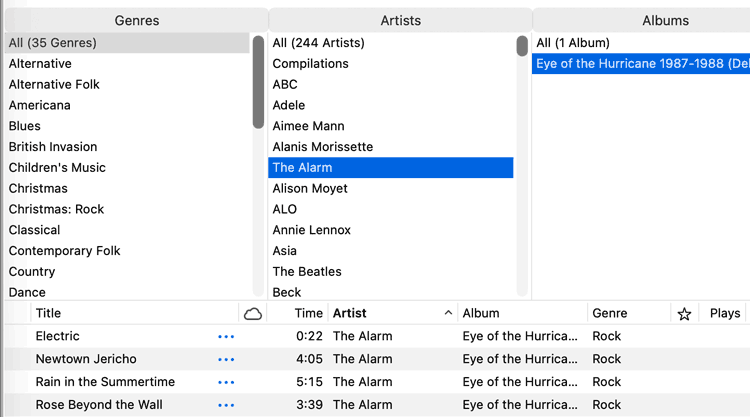
With the Column Browser back in the picture, genre and compilation metadata resurfaced as an issue.
From my years of experience with iTunes and Apple Music, I knew I really didn’t want to deal with normalizing genres again, so I decided to leave genre unmanaged. Since my rebuilt collection would contain only music I broadly consider rock, I could ignore genre and always select “All” in the Genre column.
For compilations, I decided to resume my practice of adjusting the flag to move best-of albums from Compilations to the artists list.
Later, I’d realize that when you unselect the compilations checkbox in Get Info, the setting often reverts a few seconds later. Apple Music tries to detect compilations dynamically and segregate them. If you edit the compilation flag along with additional metadata fields, you sometimes can get the compilation setting to stick. However, the results are unpredictable. So, eventually, I decided to give up and let Apple Music manage the compilation flag. The “part of compilation” setting only affects the Column Browser and doesn’t change anything when you “view as Artists” on a Mac or view your collection on an iPhone.
Next, I got into a long discussion with Perplexity about backup strategies and tools. After a diversion into third-party tools (many of which had limitations or complications), we agreed that direct Playlist exports from Apple Music would be the best option. In fact, Perplexity offered numerous reasons that the Playlist organization model was superior for backup and restore compared to the Library organization model. We touched on automating playlist backups with a script, but I deferred that project to later.
As a reality check, before proceeding too far with my only Playlists plan, I asked Perplexity if my strategy was common among Apple Music users. The AI answered that for a large collection like mine, the playlist organization model was very rare, but it was congratulatory and surprisingly positive about the plan.
I asked Perplexity whether I could recreate my library by developing a script that would analyze my Library.xml export and automatically populate Playlists. While possible, this process seemed error-prone, so I abandoned the idea.
A comment about Perplexity: By now, the brainstorming thread had grown extraordinarily long. Perplexity started to hang (with a spinning icon) whenever I opened the thread or typed in a new query. I think I hit the limits of Perplexity’s memory management. In retrospect, it may not have been the best tool for this research phase.
In any case, I was done with planning and prototyping and almost ready to rebuild.
Chapter 12: ChatGPT Creates an HTML Column Browser
My next challenge was to figure out how to create a browsable catalog of my music collection outside of Apple Music. I’d need a blueprint for rebuilding my collection (i.e., my curated list of rock artists and albums).
I knew the key was the Library.xml file I’d exported from the last known good state of my music collection (see Chapter 8).
My first thought was to ask ChatGPT to write a Python script to convert my Library.xml file into a CSV I could open in Excel or Google Sheets. A spreadsheet would let me easily track my progress as I re-added albums to Apple Music.
After brainstorming this idea and agreeing on which fields to include, ChatGPT iterated on several versions of the script until it produced the desired results. I imported the csv file into Excel and converted it to a spreadsheet.
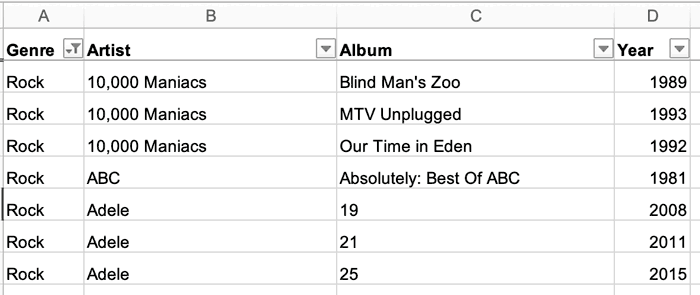
After that, I had an idea. I asked ChatGPT to create another script to transform the Library.xml into an HTML Column Browser. We discussed the features I’d need, and after several attempts, ChatGPT finally produced a version of the script that output my library in the correct HTML format.
When opened in a web browser, the HTML file mimicked the Apple Music Column Browser. For example, it allowed filtering by Genre and Artist. However, the browser also included checkboxes before each artist name and album title so I could record my rebuild progress. Finally, I instructed ChatGPT to list the albums chronologically in the Album column (whereas the Column Browser in Apple Music shows them alphabetically). Ordering the albums by year of release would make it faster for me to add them from the Apple Music catalog, which lists albums chronologically.
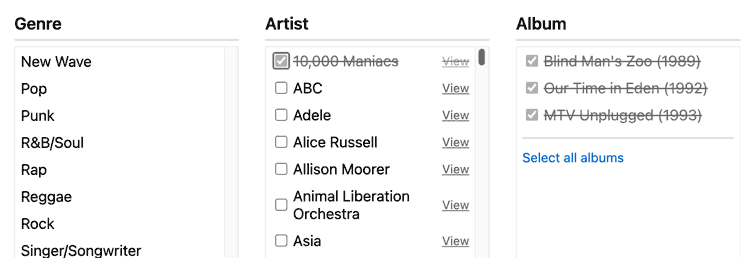
In the end, I never used the spreadsheet and relied only on the HTML Column Browser to track my progress.
Chapter 13: Reconstruction
Using my HTML Column Browser for reference, I began rebuilding my collection, artist-by-artist and album-by-album.
During the process, I came across a bunch of artists in my collection that I either couldn’t recall or hadn’t listened to much. Instead of blindly adding them to my new collection, I created an Evaluation playlist. I’d listen later before re-adding them. Since I was tending to my music garden for the first time in years, I might as well do some pruning.
I also discovered that many of the artists in my collection had released new albums over the years. Some artists (e.g., Tori Amos) I like enough that I added their newest albums to the evaluation queue without any research. For artists I knew earlier in their careers (e.g., James and Hothouse Flowers), I used Perplexity to get recommendations for whether I’d like their later albums (or which ones I should try). Usually, its advice was helpful and persuasive.
For many artists, my collection originally included one or more greatest-hits or best-of albums. I ran into problems with many of these. In some cases, the Apple Music catalog didn’t have the same compilation album. Even when it did, the catalog often had alternate compilations, some of which appeared to have better (or more comprehensive) track selections. Also, for most artists, Apple Music offers an “Essentials” playlist — yet another compilation option.
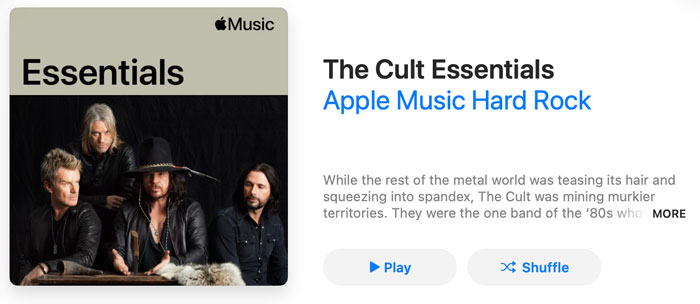
I also used Perplexity to help me select compilations. Often, I’d ask it to compare two or three compilation options for a given artist. To get the best results, I had to tell Perplexity for each artist whether I was looking for a tight collection of songs or something more like a career retrospective.
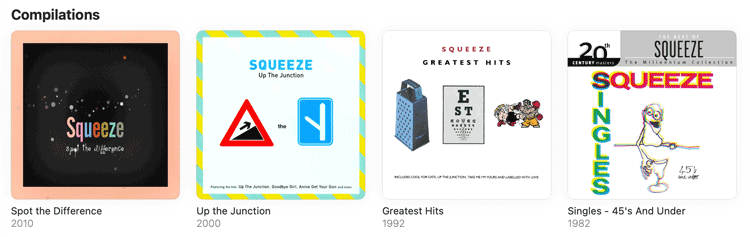
Researching music proved to be an exemplary use case for AI. Without chatbots, I would’ve just blindly rebuilt my previous music collection (i.e., no pausing for research). Via web searches, exploring the consensus on greatest hits albums and understanding how an artist’s style evolved over different eras would’ve been infinitely more time-consuming and labor-intensive.
With occasional help from Perplexity, day to day, I added more albums to my playlists. The process was tedious, but I was hopeful about the final result.
Before revealing how everything turned out, I need to describe two more stops on the road.
Chapter 14: A “Marvislous” App
Shortly into my music library rebuild, I realized that I’d been optimizing my plan only for Apple Music on the Mac. I hadn’t considered how my playlist-only model would impact my iPhone music experience.
When you add your music to your Apple Music library (as most users do), the iPhone offers a reasonable user interface for browsing your collection. While it doesn’t offer anything like the column browser, you can view your library “as artist” — as you would on a Mac.
To capture the user experience in screenshots, I temporarily added some classic rock to my library. (My collection doesn’t include much classic rock since it’s not a sub-genre I tend to favor.)
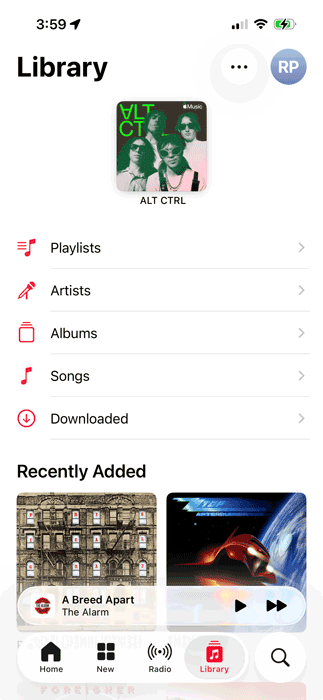
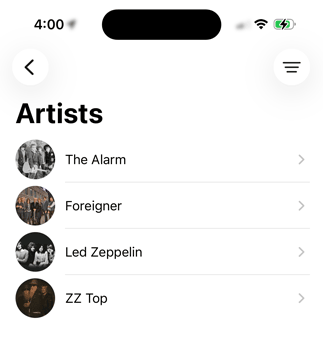
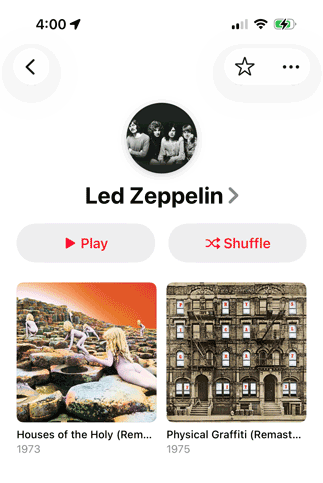
The problem was that my collection wouldn’t reside in the library, and, for playlists, Apple Music on the iPhone doesn’t offer a way to view by artist. For playlists, the iPhone offers only view by song; it presents a list of songs with options to sort by Playlist Order, Title, Artists, Album, or Release Date.
Even with my collection broken down into multiple playlists for different letter ranges, I wouldn’t be able to browse my list of artists (let alone their albums) with this UI.
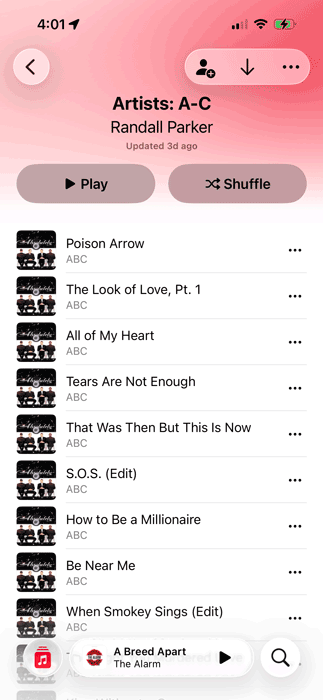
My initial idea to solve this problem was to create a playlist for each artist. My Playlist structure would be as follows:
- My Music (playlist folder)
- Artists A-C (playlist folder)
- ABC (playlist)
- Adele (playlist)
- Aimee Mann (playlist)
- Alanis Morisettee (playlist)
- …
- Artists D-G (playlist folder)
- The Dandy Warhols (playlist)
- Dave Edumunds (playlist)
- Dave Matthews (playlist)
- …
- …
- Artists A-C (playlist folder)
This approach would let me easily scroll through artists on my iPhone. However, it would explode the number of playlists. I saw two drawbacks:
- Within an artist playlist, scrolling through albums would still be cumbersome (especially for artists like U2 or The Beatles, where I have all the albums).
- Backups would be harder to manage with so many playlists.
Again, I turned to AI to explore my options.
I used both Google Search — with its interactive “Dive deeper in AI Mode” (similar to Gemini) — and ChatGPT to do my research.
The most promising option appeared to be third-party iPhone music players, which use Apple Music’s API to access your library and playlists. In a nutshell, I needed an iPhone app that could do what Apple’s Music app could not: present my playlists in a sane user interface.
According to AI, only one such app had the customization options I needed: Marvis Pro.
Available as a one-time $9.99 purchase, Marvis is a highly configurable music app for iPhone and iPad. In fact, the app’s overwhelming abundance of display options comes with a steep learning curve.
I turned to AI to figure out which of the millions of settings I’d have to tweak. Unfortunately, both Gemini and ChatGPT appeared to be out of date on how Marvis works. As a result, they led me down several incorrect paths (to dead ends).
In the end, I stumbled upon the key configuration options on my own.
1) I set the view for playlists to Home…
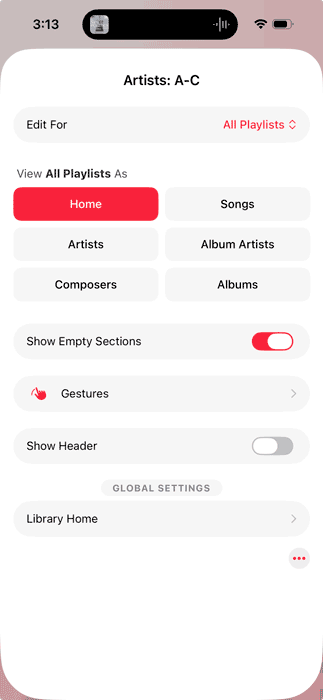
…which creates a dedicated screen in Marvis for each playlist.
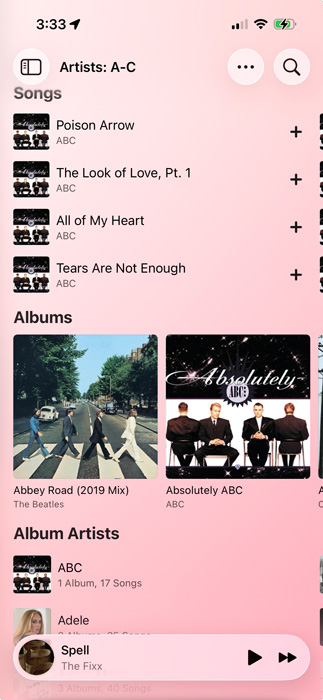
2) I also set the view for Album Artists to Home…
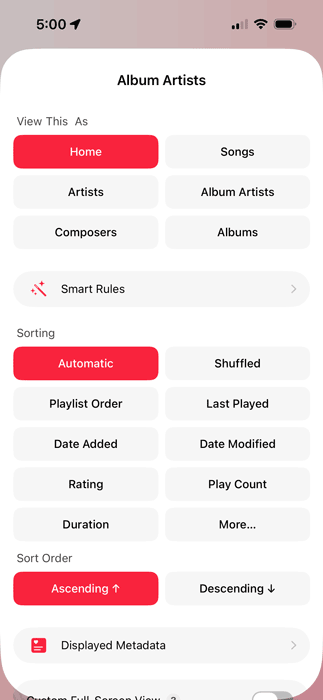
…which creates a dedicated screen in Marvis for album artists.
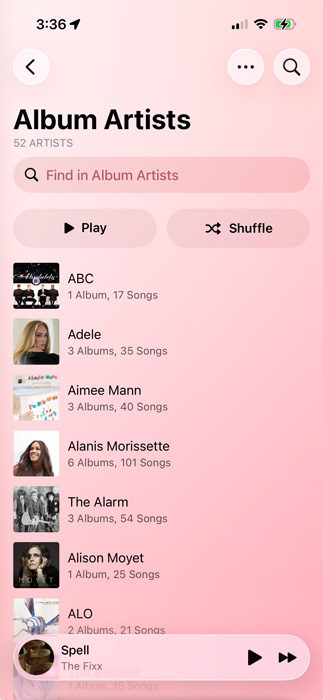
3) I set the view for individual album artists to Albums, sorted by Year with Newest First.
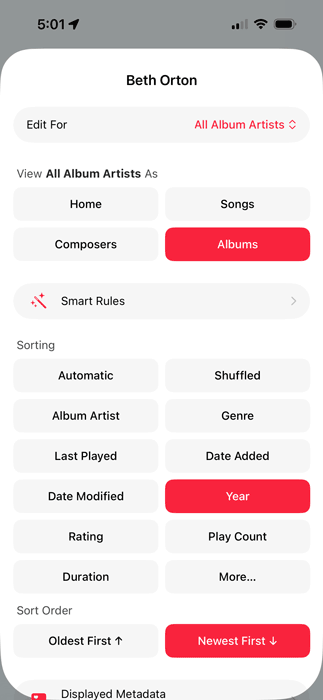
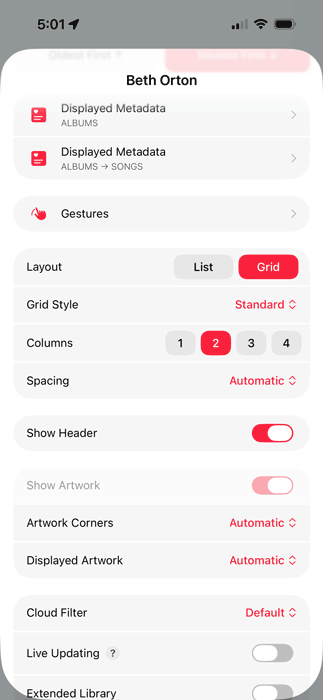
Scrolling down, I set Layout to Grid with 2 Columns as my preferred albums view.
Below is the resulting view, which makes it easy to browse an artist’s albums.
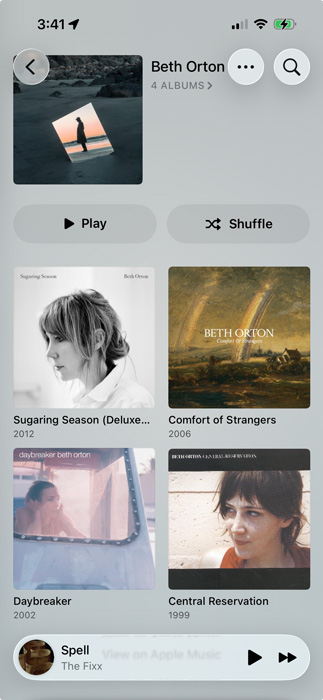
The incredibly detailed configuration options in Marvis allowed me to recreate the library browsing experience from Apple’s iPhone Music app, but for playlists.
Later, I discovered another powerful configuration option in Marvis. You can customize the Player screen!
So far, I’ve made two tweaks:
- I enlarged and bolded the artist name (“Talking Heads” in the screenshot below).
- I added the album title and year below the artist name.
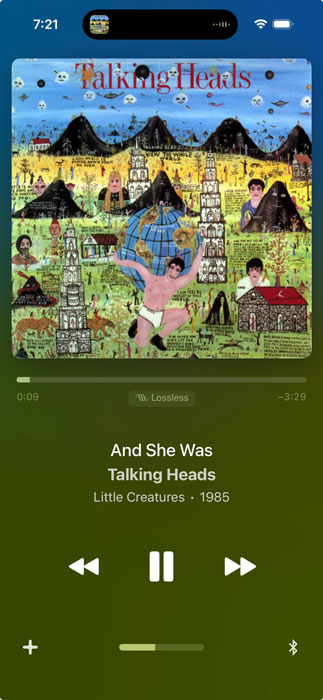
Now that I’ve experienced the sophisticated user interface options in Marvis, I’d likely prefer the app even if my music were stored in the Apple Music library instead of in playlists.
Chapter 15: Automating Backups with ChatGPT
As I mentioned in Chapter 11, Perplexity and I concluded that direct playlist exports from Apple Music would be the most reliable backup method for my music collection.
Early in my rebuild effort, I was regularly exporting my playlists via: File menu > Library > Export Playlist… But this quickly became cumbersome, so I took a time out to revisit the idea of automating backups.
I started a new thread in ChatGPT to validate my backup strategy. This would turn into another marathon chat. We brainstormed ideas and refined my backup requirements. It advised me to keep each artist playlist (e.g., “Artists: A-C”) to around 3,000-4,000 songs.
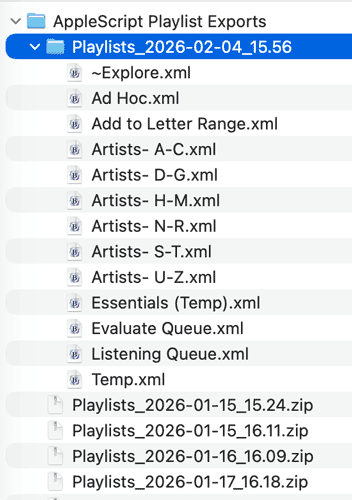
We agreed the AppleScript would:
- Create a time-stamped backup folder for each run.
- Iterate over my playlists and export each one to the folder (in XML).
- Compress the backup folder to a zip archive.
- Delete the uncompressed folder.
The script would have two user settings:
- A “dryRun” flag that, when enabled, would run the script in simulation mode and create a log file listing the playlists that would have been exported.
- A filepath for where to output the zip archives.
Once I finally told ChatGPT to generate the script, the process of getting to the final draft was far more convoluted than I expected. The chatbot had to produce 10 major iterations of the AppleScript (with countless tweaks along the way) before it got everything right.
When I asked the agent why it was having so much trouble getting the correct results, it reported that AppleScript is poorly documented and tricky to get right.
Ultimately, ChatGPT worked out all the kinks and produced an AppleScript that performed correctly in both dry runs and actual backups. I’ve integrated this script into my regular backup routine.
Chapter 16: The End Result
I’ve got tons of albums to listen to in my Evaluate queue, but otherwise, I’m done rebuilding my album collection in Apple Music.
In Chapter 14, I showed the results on my iPhone (in the Marvis Pro music player app).
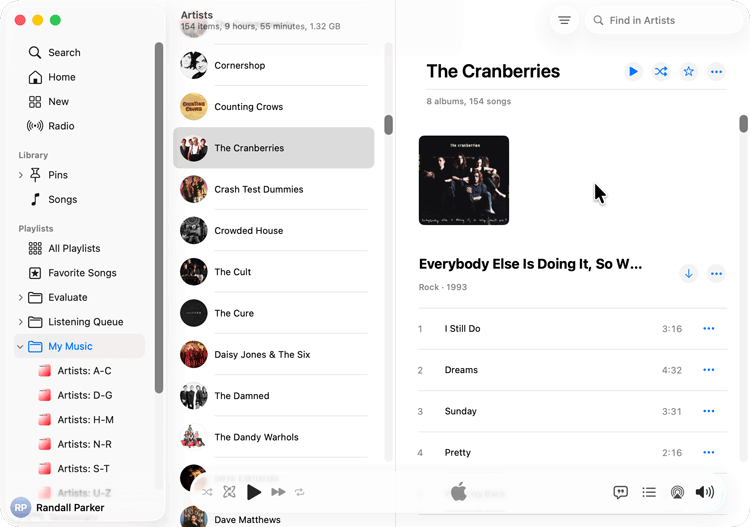
Below is how the collection looks in the Apple Music app on my Mac.
Epilogue: Final Thoughts
Calling the effort to rebuild my music collection “Herculean” would be an understatement. If nothing else, the length of this post illustrates how tedious and convoluted the process was.
I’ve second-guessed myself several times over my (AI-influenced) decision to organize my music by playlist rather than via the library. So far, so good — but only time will tell.
Additional Learnings
As a result of this project, I expanded my knowledge about both Apple Music and the strengths and weaknesses of AI agents. A few tidbits I haven’t mentioned yet:
1) Stickiness of custom metadata.
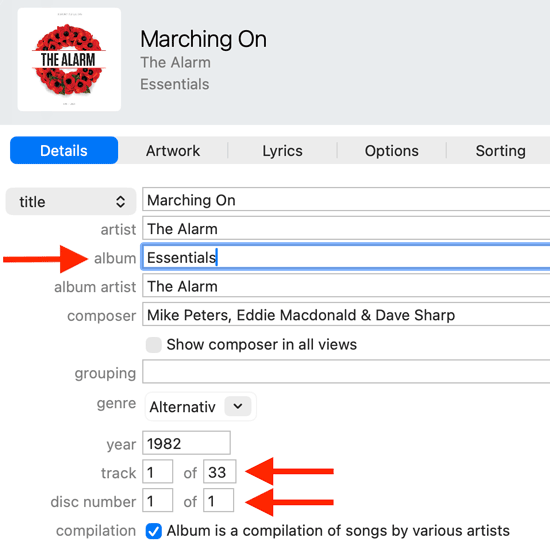
My music organization model is optimized for browsing first by artists and then by albums. This makes Essentials playlists problematic since they are collections of songs from different albums. Hence, while browsing, they’d look like a bunch of different albums, each with only a few songs. To get around this, I tried tweaking the metadata so the songs would appear to be from a cohesive album. I did this by selecting all the tracks, opening Get Info, and setting the Album field to “Essentials Playlist.” In short, the idea was to turn a playlist into a “pretend” album.
I ran into a problem when I changed my mind about The Jesus and Mary Chain and decided I wanted individual albums and not the Essentials playlist. I deleted the songs from the playlist and then added their “regular” albums from the Apple Music catalog. The problem is that Apple Music remembered my custom metadata. The songs that had been in my fake album retained “Essentials Playlist” as the album (and hence weren’t grouped with the actual album they were from).
According to ChatGPT, Apple Music retains custom metadata at the account level, irrespective of whether the songs remain in your library or playlists. To fix the problem, I had to revise the metadata of the affected tracks back to “normal.”
As a result of this learning, I’ve decided to avoid this practice and instead select bona fide best-of albums (or place Essentials playlists in their own playlist folder away from the rest of my collection).
2) ChatGPT Projects.
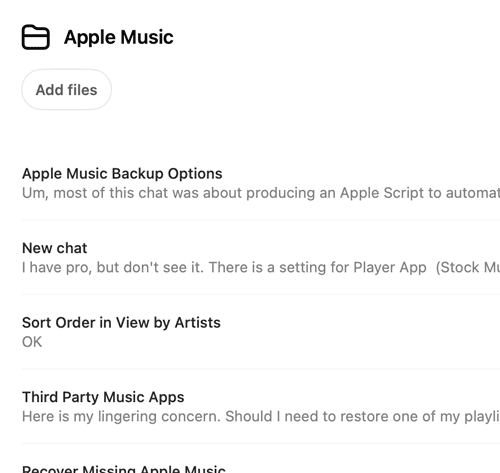
When ChatGPT released Projects, I’d ignored the feature because it was behind a paywall. But while rebuilding my music collection, I ended up with an explosion of Apple Music-related threads. After confirming that Projects was now free, I consolidated everything into a single project, which made finding information far easier than digging through my chat history.
3) AI Writing Assistance.
Since this post is so much about chatbots, you might wonder how I use AI in my writing process. The short answer is: to a limited extent.
I certainly don’t ask chatbots to compose posts for me. I’ve been writing in various forms for well over three decades, and having AI write for me would strip away all the satisfaction.
However, when I’m struggling to wrangle klunky sentences, I do turn to chatbots for suggestions. ChatGPT has impressed me with its sentence revisions, and I used the tool while refining this post.
About halfway through my editing and rewriting, I decided to try Claude, since I’d read that it excels at writing assistance. I’ve been extremely pleased with the results. The chatbot typically offers 4-5 rewrite options and recommends 1-2 of those over the others. I usually choose the one that sounds most like me.
I also have Grammarly running in my browser. The free version underlines words in orange for corrections that are behind its premium paywall. Sometimes, I can figure out what it’s complaining about; the rest of the time, I feed the sentence into Claude, and it usually deduces the problem.
Apple Music Feature Requests
Limitations in Apple Music made this project more complex (and far more challenging) than it needed to be. Consequently, I’ve got some feedback for Apple.
I touched on this in Chapter 11, but the fastest way I could have reassembled my music collection would’ve been to mark albums as favorites and then create a smart playlist (with the rule: Album Favorite / Suggest Less is Favorite).
This was my preferred approach. However, it would’ve created two problems:
- Smart Playlists work only on Macs, whereas I mostly listen to music on my iPhone.
- Marking an album as a favorite adds it to your library, which I was trying to avoid. (I could have lived with this had #1 not been a problem.)
I’m sure I’m forgetting something, but below is my list of feature requests for Apple Music.
On macOS
On iPhone
On All Devices
Whew! That’s my story. If you made it this far, I applaud your patience, appreciate your attention, and would love to hear your thoughts in the comments.
Your Turn
What challenges have you faced with Apple Music? What features would you like to see Apple add to the music app? Do you disagree with some of the decisions I made? Please let me know in the comments.
(Note: I moderate all comments, so you may experience a delay before your comment appears on the post. SPAMMERS, don’t waste time submitting as I will reject your comment.)
Wow. Your diligence is mind boggling. I would never have had the endurance for that. I did learn a bit following it through. Thanks for taking all that time to organize your efforts and posting it. Do you happen to be a Virgo?
Lori – thanks for the comment! I have to admit that I questioned my sanity both during the project and while writing the post. At each step, I fell a bit deeper into the rabbit hole, but I wanted to get something for my time investment, so that kept me going. I am a Virgo and don’t subscribe to astrology, yet I resemble that remark. 🙂
This was a wild ride, and I’m glad I have (for now) stuck with a different solution. I run macOS Mojave on an Intel Mac mini in headless mode because I occasionally need access to a few niche scientific apps that were never upgraded to 64-bit, and I cannot emulate older macOS versions on Apple Silicon. After getting frustrated with Apple Music, I moved all my music — mostly ripped from CDs — back to iTunes on the mini. And I keep an old iPod touch for music, because I don’t want my phone filling up with music. In a better world, I’d still be running Snow Leopard; guess I’m a curmudgeon at heart.
If my music collection model still revolved around physical media and rips, then I possibly would use a different music app or solution. But I closed (and locked) that door long ago. I think I have at least one iPod sitting in a drawer, but can’t imagine using it (especially after experiencing Marvis on my phone).
Wow. I thank you for your community spirit shown by documenting and sharing this process. I’ve had library problems with Apple Music as well; not as bad as yours, but still requiring several hours to figure out and rectify. I learned more about AI as well by reading your document.
Love the feedback; glad you learned something!
Thanks so much for doing this write up. Like you, my journey started with ripping my 1000+ CD’s of music into iTunes as Apple Lossless files. I also went through all the metadata, curated it to better match how I organized my music (and yes, I hated the compilation flag as well). My issues really started when Apple Music started offering remastered and HiRes versions of music. I couldn’t find a usable way to determine my ripped versions, from remastered versions, Apple would give you two or three versions of the same album and it just got to hard to manage. So, while migrating from one Mac to another, I really screwed up my library and things were looking bleak. So instead of exporting the playlists and messing around that way, I started creating smart playlists that helped me get back to some form of a useful library. I removed all my ripped songs from the library and I’m slowly adding them back using tags in my files and folders as I add them back in. Painful, but the Apple Music app is just not really designed to be customizable. I’m definitely going to look at that iOS app you mentioned, see if I can get it to work how my brain thinks about music. Thanks again for all your hard work on your journey.
Chris – thanks for the comment. Although I’m sorry to hear about your Apple Music gremlins, I take some solace in knowing that I’m far from alone when it comes to fighting with the app.
OMG. So…it’s not just me??? I have been going through hell. Thought I was finally on the right path when my phone and my Mac had the same correct playlist. Went to bed feeling better about it all. Returned to my Mac to find it was missing over 1000 songs on both devices – songs that were there yesterday(!)